Canvas Learning Management System
What is Canvas?
Canvas is a cloud-based Learning Management System that is very easy to use and navigate. It helps faculty share information and communicate with you during the semester. It can be used for electronic resources, online discussions, group projects, video and audio recordings, viewing your gradebook, communicating with your instructor, and much more.
How Do I Login?
1. Go to macc.edu and click on Canvas logo in upper right corner.
2. Enter the login and password that you received when you enrolled. This is the same username and password used to login while you are on an MACC campus.
Alternate logins: https://macc.instructure.com or go to myMACC and choose "Online Class Login"
How Can I Get Help?
If you are stumped or need assistance, there are multiple ways to get help:
1. Contact your instructor.
2. Click Help in the Global Navigation pane for step-by-step instructors or online videos. You can also “chat” with a Canvas technical support specialist.
3. Contact Instructional Technology at int@macc.edu or (660) 263-4100 ext. 11525.
The Dashboard
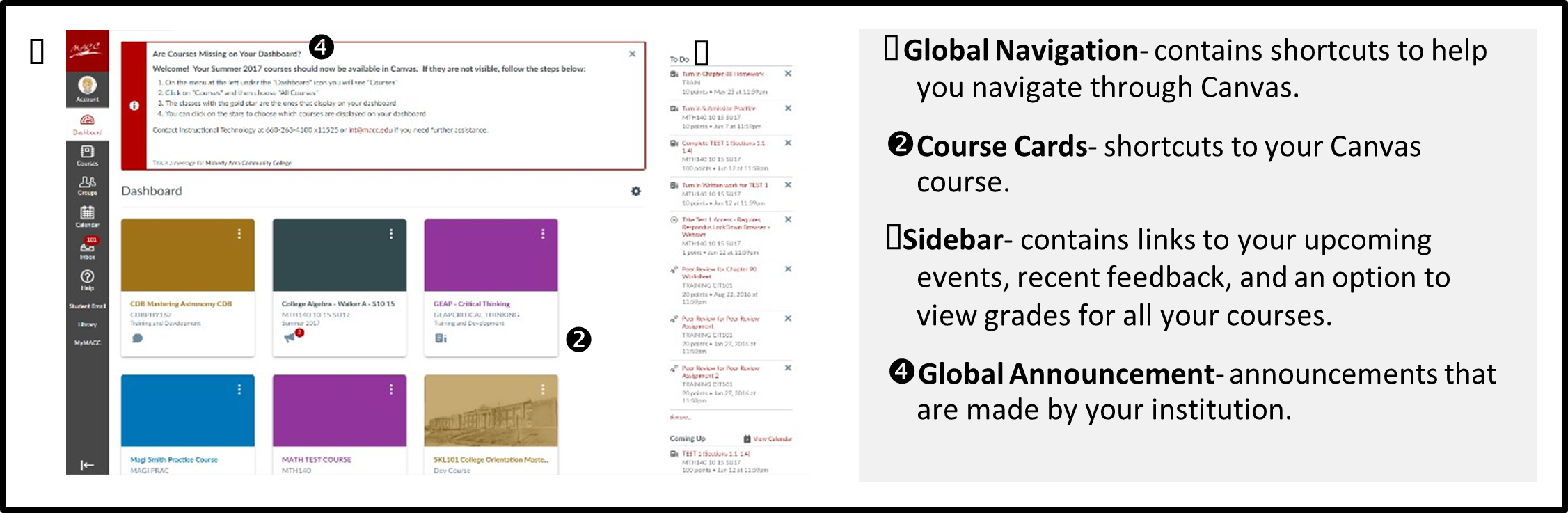
When you log into Canvas, the Dashboard is the first thing you will see. The Dashboard gives you an overview of what is happening in all your courses and allows you to figure out what to do next. You can return to your User Dashboard at any time by clicking the Dashboard link on the Global Navigation pane.
How Do I Change the Courses That Appear on My Dashboard?
1. On the menu at the left under the "Dashboard" icon you will see "Courses".
2. Click on "Courses" and then choose "All Courses".
3. The classes with the gold star are the ones that display on your dashboard.
4. You can click on the stars to choose which courses are displayed on your dashboard.
How Do I Set Notification Preferences?
Canvas includes a set of default notification preferences you can receive for your courses. These changes apply to all of your courses—you cannot change settings for individual courses.
1. Click Account in the Global Navigation pane.
2. Click the Notifications shortcut in the panel that appears.
3. Make selection for each type of notification you want to change.
How Do I Add My Profile Picture?
1. In the Global Navigation pane, click on Account and then Settings.
2. Click the Profile Picture icon.
3. Click Upload Picture and then click the Choose a Picture link. (You can also drag a picture from your desktop).
4. Find the image you want to upload and click Open.
5. Resize or Crop as needed.
6. Click Save.
How Do I Edit Profile Information?
1. Click Account in the Global Navigation pane.
2. Click Settings.
3. Click the Edit Settings button and make changes to your settings.
4. Click the Update Settings button when you are finished.
You can also add personal Web Services, such as Google Drive, LinkedIn, and Twitter in this location.
What are Modules?
Modules control the entire flow of the course, along with its content.
1. Open a Course by clicking on its Course Card.
2. Click Modules in the Course Navigation pane.
3. You can advance through module items or return to previous modules using the progression bar at the bottom of the page. To advance to the next module item, click the Next button. To return to a previous module item, click the Previous button (PC only)
How Do I Submit an Assignment?
Many of your instructors will have you submit work online.
1. Click on the Assignment.
2. Click the red Submit Assignment button.
3. Click the Choose File button to upload and then click Submit Assignment.
4. Once you submit an assignment, you will see “Submission Turned In”, a green check mark, and date on the right side of screen. Click the Submission Details button to download a copy of what you submitted.
How Do I Reply to a Discussion Post?
Discussions are used to simulate a traditional classroom setting and allow students to have “conversations” or “discussions” within an online environment. Your instructor may assign work in the form of discussions. Be sure to read specific information in your course syllabus regarding instructions for posting.
1. Click the Reply button.
2. Write your reply.
3. Click Post Reply.
How Do I Know When Something is Due?
The Canvas To-Do list, Modules, and Calendar will help you keep track of due dates for courses with assignments in Canvas. Click on the link to the assignment to be taken to the assignment page. Remember: there may be preliminary work required in Modules before each assignment can be completed.
How Do I Send a Message to my Instructor?
1. Click on Inbox in the Global Navigation pane.
2. Start typing your Instructor’s name (it will appear for you after a few letters are keyed).
3. Enter your message.
4. Click Send.
You can also attach a file or record your message!
How Do I View My Grades?
1. View your grades for all courses from your Dashboard by clicking the View Grades button in the bottom right corner.
2. View grades within a course by clicking the Grades link in the left course menu.
Tip: Use the grade predictor tool in your course to gauge how certain scores will affect your grade!